Creating a bibliography in Word sounds like a ten-minute task — until you need to reorder a source after the fact, switch citation styles, or find that the list suddenly refuses to update. This post walks you through the two sensible approaches for building a clean bibliography in Word: one using Word’s built-in tools, one with Zotero and the Word plugin. Honest recommendation included on when to use which.
Which approach works for which paper?
A rule of thumb from practice: if you’re writing a seminar paper with at most ten sources and you’re already working in Word, the built-in tools will get you through. As soon as your paper moves toward a bachelor’s or master’s thesis — as soon as multiple styles are on the table or you’re working across several devices — Zotero is worth setting up from day one. Twenty minutes of setup saves you half a weekend later.
And whichever route you take: formatting is only half the job — neither Word nor Zotero checks whether your entries exist and the details are right. How that check works is covered on the bibliography checker page; for a quick read, paste your bibliography into the free Quick Check at any point — no sign-up, results in two minutes.
Option 1: Bibliography in Word using built-in tools
Word has shipped with its own reference manager for years. You’ll find it on the References tab. It’s adequate for short papers — and simultaneously the most common trap for anyone who wants to switch tools later.
Adding a source
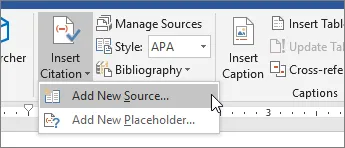
Click References → Manage Sources → New. In the dialog, choose the source type at the top: Book, Book Section, Journal Article, Conference Proceedings, Website, Report, Interview. The input form adapts to the type. Fill in the authors (click “Edit” to enter first and last name separately), title, year, publisher, place, and DOI where applicable. Confirm — the source lands in your Word-installation-wide master list and simultaneously in the “Current List” for your document. You can reach the same dialog directly via Insert Citation → Add New Source:
Source: Microsoft Support
Inserting an in-text citation
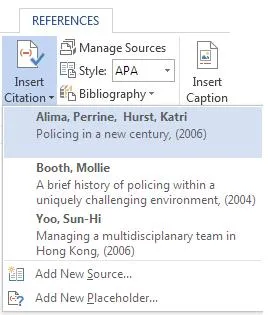
Place the cursor where the citation should go, then click References → Insert Citation → [choose your source]. Word inserts the reference in the currently selected style. The dropdown lists every source you’ve recorded:
Source: Microsoft Support
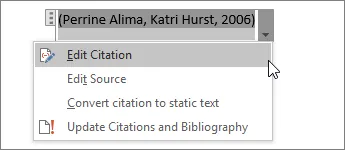
Need a page number? Click on the inserted citation field, open the small dropdown on the right, choose Edit Citation, and enter the page number.
Source: Microsoft Support
Inserting the bibliography
Position the cursor at the end of your paper, then click References → Bibliography → Insert Bibliography. Word builds the list from all sources you have cited in the document. Important: Word does not update the bibliography automatically. After adding new citations, click inside the bibliography and press Update Citations and Bibliography at the top. Anyone who forgets this submits an incomplete bibliography.
Switching citation styles
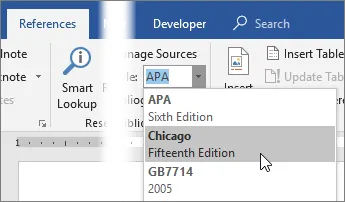
On the References tab, find the Style dropdown. Word ships with APA, Chicago, GOST, IEEE, ISO 690, Harvard Anglia, and a few others. Change the style and Word reformats all citations and the bibliography throughout the document.
Source: Microsoft Support
Where built-in tools hit their limits
- No PDF attachments to sources. Two months later, when you want to verify where a claim came from, you’ll be searching for the file all over again.
- No tags, no collections, no sync across devices.
- The bundled styles are limited. Genuine Harvard (UK), discipline-specific variants, or a department-specific style aren’t included and can only be added through XML workarounds.
- A typo in a source has to be corrected in every document individually — the master list helps only partially.
- Switch computers and your source list is gone. You’d need to manually carry over the
Sources.xmlfile from your Word profile.
For a short seminar paper, that’s fine. For anything beyond: use the second option.
Option 2: Bibliography in Word with Zotero and the plugin
Zotero is a free reference manager that runs on macOS, Windows, and Linux. The Word plugin comes with the Zotero installation automatically; it adds a Zotero tab to Word’s ribbon.
Checking or reinstalling the plugin
After installing Zotero, start Word — the Zotero tab should be there. If it’s missing, open Zotero and go to Edit → Preferences → Cite → Word Processors, then click Install Microsoft Word Add-in. Restart Word.
Adding sources to Zotero
Before citing, you need sources in Zotero. The fastest route is the browser connector (see Zotero workflow tips): open a source on a publisher’s page, click the connector icon, and the metadata and PDF land in your library. Manual entry works too via File → New Item → [choose type].
Inserting a citation in Word
Click in Word where you want the citation to go, then click Add/Edit Citation on the Zotero tab (or use the keyboard shortcut). On first use, Zotero asks for the style and language — choose and continue. A red search bar appears; type an author name or a word from the title and Zotero suggests matching entries. Select one, press Enter, and the citation is inserted.
Multiple sources in one citation
For (Mueller 2020; Schmidt 2022), open Add/Edit Citation, click the first result in the search bar, then click back into the field and type the second source. Adjust the order by clicking, and you’re done — Zotero sorts according to the style rules automatically.
Inserting the bibliography
Move the cursor to the end of your paper and click Add/Edit Bibliography. Zotero inserts the bibliography and keeps it in sync from then on — every new citation causes the list to grow automatically. Sources you remove from the text also drop out automatically.
Switching styles in one click
Open Document Preferences in the Zotero toolbar, choose a different Citation Style, press Enter. All citations and the bibliography are reset in the new style. This only works as long as every citation is a real Zotero field. If you typed a reference by hand anywhere, it stays unchanged — and that’s exactly where inconsistencies creep in later.
Attaching a PDF to a source
Drag a PDF file onto the source entry in Zotero. When you return to verify things later (for example with Acurio), you have the source and the full text in one place, can verify page numbers, and don’t have to search.
Comparison at a glance
| Criterion | Word built-in tools | Zotero + Word plugin |
|---|---|---|
| Initial effort | 0 minutes | approx. 20 minutes setup |
| Scalability | up to ~10 sources | hundreds of sources, no problem |
| Style selection | ~10 bundled styles | 10,000+ styles (CSL repository) |
| Source management | per Word profile, local | central, searchable, with tags |
| Multi-device / Sync | not supported | included via Zotero account |
| PDFs attached to source | no | yes, with annotations |
| Content verification | manual only | structured fields, verifiable |
Common mistakes you can skip
- Typing citations as plain text. It looks the same in the moment, but Word and Zotero can no longer update anything. The next style switch leaves your bibliography inconsistent.
- Sorting the bibliography by hand. Whichever approach you use — the moment you add a source and refresh, your manual ordering is gone. Sorting belongs to the style, not to you.
- Mixing Word’s built-in tools and Zotero. Citing with both systems in the same document leaves you with two parallel lists and duplicate entries in the bibliography. Decide before your first citation.
- Forgetting
Refresh. You corrected a typo or added a page number in Zotero — Word still shows the old version until you clickRefreshin the Zotero toolbar. - Deleting an entry from the bibliography instead of the in-text citation. The bibliography is just the output. Delete the citation in the running text and the bibliography cleans itself up.
Before you submit
A few points every paper benefits from:
- Review the bibliography. Is the order right? Do all sources cited in the text appear there? No duplicates (common: the same article with and without a DOI as two separate entries)?
- Convert fields on a copy first. Some departments want the document “flattened” — without Zotero or Word field functions. In Zotero you do this with
Unlink Citations— on a copy of your document. Otherwise all future updates are gone permanently. - Check the content. The format is right. But is what you attribute to each source also accurate? That step lives in neither Word nor Zotero — it’s what the next section is about.
The bibliography is done — now verify the content with Acurio
A cleanly formatted bibliography is the form of your paper. What neither Word nor Zotero checks is the content: does the source actually exist? Does the study really say what you attribute to it? Is the page number right? Checking exactly this match between claim and source is what Acurio does — the part no plagiarism detector covers.
The workflow takes three steps:
- Upload your document. Upload your finished Word file or PDF to Acurio — it doesn’t matter whether the citations came from Word’s built-in tools or from Zotero.
- Run the automatic check. Acurio compares every cited claim against the underlying source and verifies whether the reference actually supports the statement.
- Go through the findings. For each citation you get a verdict — supported, imprecise, or unsupported — so you fix problems surgically instead of re-reading the whole paper.
If you went the Zotero route and attached your PDFs to their sources (see above), this takes minutes: source and full text are already in one place. And for a first impression, the free Quick Check is enough: paste your bibliography and immediately see which entries are problematic.
Example entries for your bibliography
Here is what a clean bibliography looks like (APA 7, abbreviated) — book, journal article, website:
- Mueller, T. (2020). Academic Writing for Undergraduates (3rd ed.). UTB.
- Schmidt, A., & Weber, L. (2022). Citation accuracy in undergraduate theses: A field study. Journal of Academic Integrity, 18(2), 145–162. https://doi.org/10.1007/s40979-022-00112-9
- Federal Statistical Office. (2024, March 15). Educational attainment 2023. Federal Statistical Office. https://www.bfs.admin.ch/bfs/en/home/statistics/education-science.html (retrieved 12 May 2026)
Whichever option you choose: decide at the start and stick with it. A bibliography in Word isn’t what makes your paper good — but a broken bibliography is what needlessly weakens a good paper.